 QDev
QDevSee your data six ways —
then focus on the part that matters.
Every file opens as an interactive tree, but that's one of six views over the same document. And when a file is too big to take in at once, you can reframe any node as the root and work on just that subtree.
The six views
Switch from the View menu or with ⌘1–⌘6. They all read the same parsed document — no reload, no re-parse — and switching tabs keeps your place. A collapsible inspector column on the right summarizes whatever you click, in every view: rich previews for scalars, property lists for objects, and aggregations for arrays — a palette shows as merged swatches with counts, booleans as a true/false split, numbers as a histogram. In the tree, clicking a row selects it; the chevron — or double-clicking the row — expands and collapses.
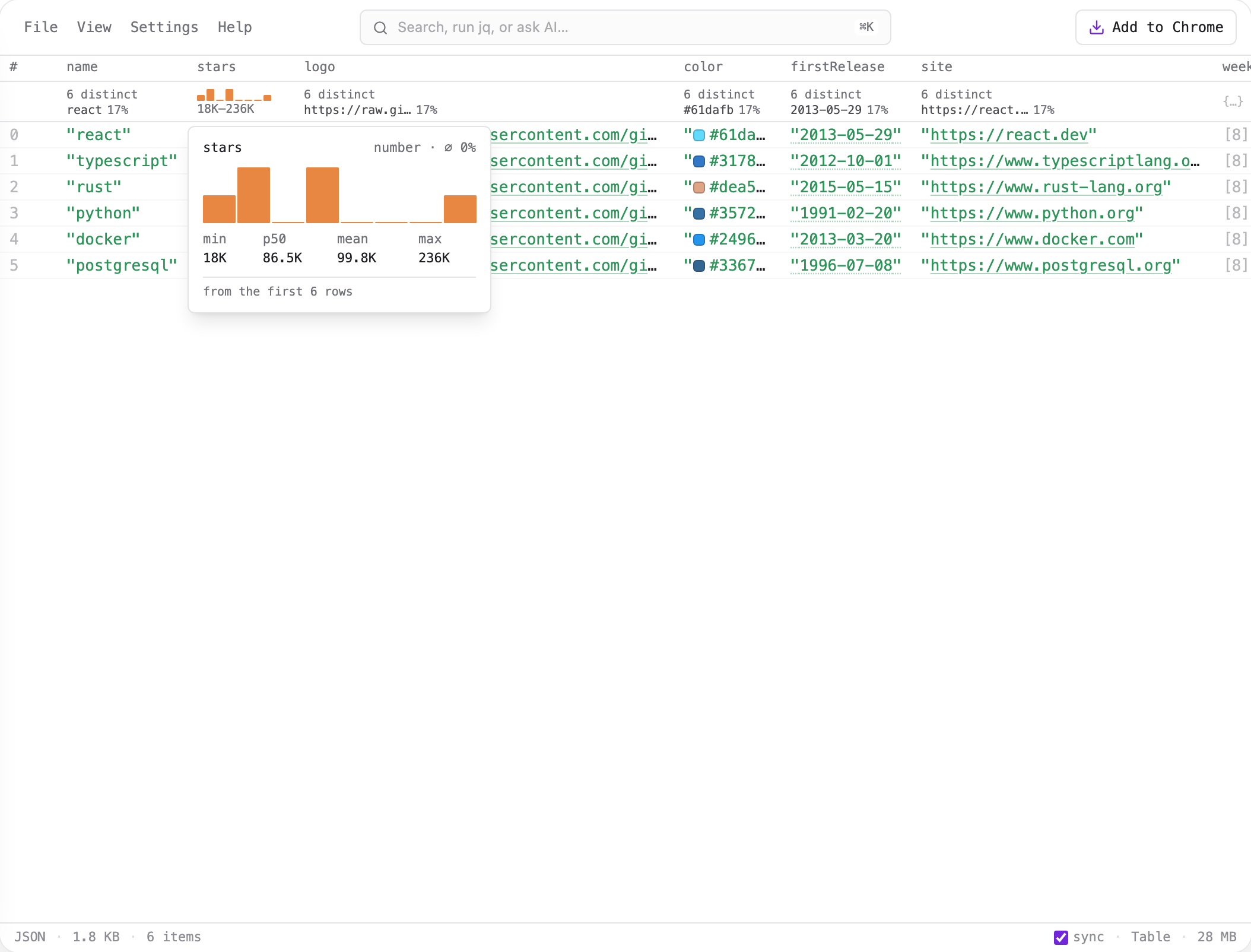
Schema and Graph need the whole document parsed in memory, so on a very large file that streams in, they may be unavailable until you narrow it down — which is exactly what rooting is for. The Table stays available, but sorting switches off when reading a cell from every row isn't affordable.
Open as root: focus on a subtree
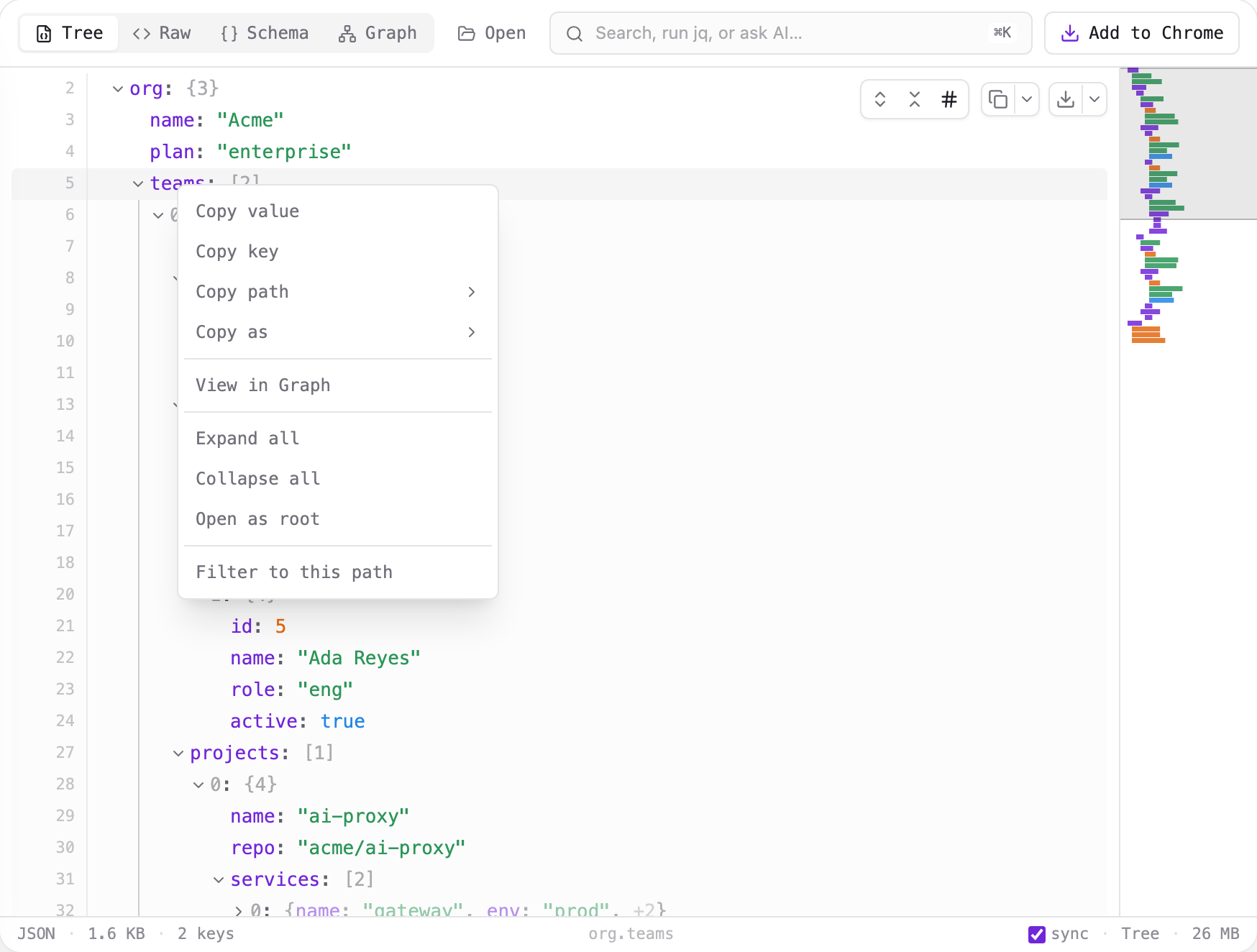
Right-click any object or array and choose Open as root. QDev reframes that node as the document root and re-opens it as a standalone document — so the tree, search, jq, schema, and graph all now operate on just that subtree.
A breadcrumb trail appears while you're drilled in — root › teams › [0] — and every crumb is clickable to climb back out. The Exit control jumps straight back to the top.
![The drill-in breadcrumb trail (root › teams › [0]) with a trailing Exit button.](/docs/drill-breadcrumb.png)
Filter to this path
The same context menu offers Filter to this path, which runs a jq query for the node's path instead of re-rooting. It keeps you in the full document's context, but needs the file small enough to run jq over. Rooting is the better move when the file is too big for that; filtering is handy when you want a jq expression you can tweak.
Two more menu items move a node between views without re-rooting — View in Graph and View in Tree — and Copy pathgives you the node's location as jq, a JSON Pointer, or a dotted path.
Compare two documents
File → Compare… diffs the current document against a second one — paste it or open a file. Additions read green, removals red, and a changed value shows old → new on one line, with entry counts in the header. It opens on changes only; untick it to see every row in context. Objects compare by key and arrays by index, so an insertion mid-array reads as a run of changes rather than a shift. Both documents stay in the tab — nothing is uploaded. Comparison needs the current document parsed in memory, so it isn't available for very large streamed files.
Six views, one document, and a root you can move wherever you're looking.